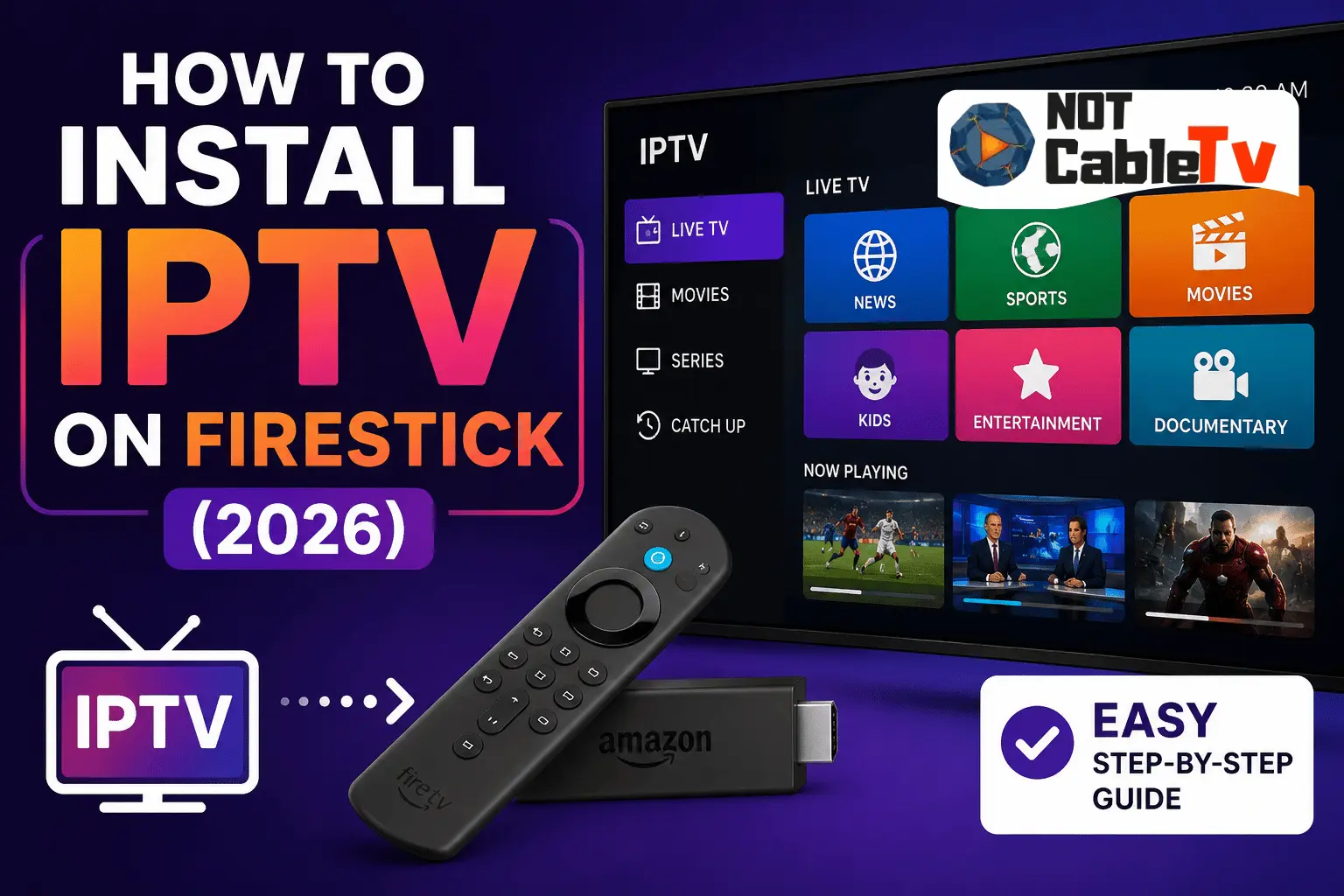
The Amazon Firestick is the most popular device for streaming IPTV, it’s cheap, plugs into any TV, and runs every major IPTV player app. If you’ve got an IPTV subscription (or a free trial) and a Fire TV Stick, you’re only a few minutes from watching live channels, sports, and on-demand content on the big screen. This guide shows you how to install IPTV on Firestick from start to finish, with the exact steps for the top apps, how to load your playlist, and how to fix the most common problems.
No technical experience needed — if you can navigate the Fire TV menu, you can do this. Let’s get started.

Watch Every Match Smoothly
How to Install IPTV on Firestick in 5 Steps (Quick Version)
Here’s the whole process at a glance. Full details for each step follow below.
- Enable “Apps from Unknown Sources” in your Firestick settings.
- Install the Downloader app from the Amazon Appstore.
- Use Downloader to install an IPTV player (like IPTV Smarters Pro or TiviMate).
- Open the app and enter your login — an M3U URL or Xtream Codes username and password from your provider.
- Load the channel guide and start watching.
That’s it. Now let’s walk through each step in detail so nothing trips you up.
Why Use a Firestick for IPTV?
The Fire TV Stick has become the go-to IPTV device for good reasons. It’s inexpensive — often under $40 — yet powerful enough to stream HD and 4K. It plugs into any TV’s HDMI port, so it works on everything from a bedroom TV to a living-room 4K set. It runs every major IPTV player, supports sideloading out of the box, and its remote and interface are simple enough for anyone. Compared to a dedicated IPTV set-top box, a Firestick is cheaper, more flexible, and doubles as a full streaming device for Netflix, Prime Video, and more. In short: it’s the easiest, most affordable way to get IPTV onto your big screen.
What You Need Before You Start
Make sure you have these four things ready:
- An Amazon Fire TV Stick — any model works (Lite, HD, 4K, or 4K Max).
- An IPTV subscription from a provider, which gives you either an M3U URL or Xtream Codes login (username, password, and server URL). If you don’t have one yet, many services offer a free IPTV trial so you can test before paying.
- A stable internet connection — at least 15–25 Mbps for smooth HD/4K streaming.
- A VPN (recommended) — for privacy and to avoid ISP throttling of streams. See the best VPN for IPTV.
Is Installing IPTV on Firestick Legal and Safe?
Installing an IPTV player app on your Firestick is completely legal — the apps themselves are just media players, similar to VLC. What matters is the service you connect to. Legitimate, properly licensed IPTV providers are legal to use; unlicensed services that offer premium channels at unrealistically low prices operate illegally and carry security risks. Always choose a reputable, licensed provider — our guide on whether IPTV is legal in the US explains exactly where the line is. Sideloading apps (installing them outside the Amazon Appstore) is also legal and is a normal, built-in Fire TV feature.
How to Choose a Reliable IPTV Provider
Before you install anything, the single biggest factor in your experience is the provider you connect to — a great app can’t fix a bad service. Look for these signs of a reputable IPTV provider:
- A free trial or short-term plan so you can test stream quality before committing to a year.
- Properly licensed content and realistic pricing — if premium channels cost a couple of dollars a month, that’s a red flag for an illegal, unstable service.
- Strong server capacity and good uptime, so channels don’t freeze during peak evening hours.
- Responsive support and clear setup instructions (they’ll give you an M3U URL or Xtream Codes login).
- Multiple simultaneous connections if you want to watch on more than one device.
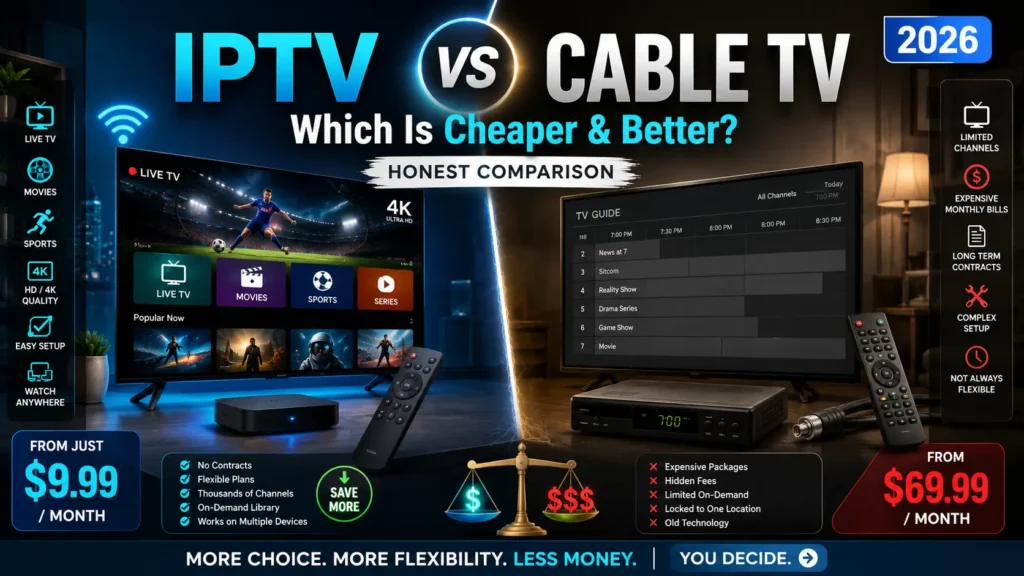
Weighing IPTV against your current setup? Our comparison of IPTV vs cable TV covers the cost and reliability trade-offs in full.
Step 1: Enable Apps From Unknown Sources
Because the best IPTV players aren’t all in the Amazon Appstore, you need to let your Firestick install apps from outside it. This is a standard setting:
- From the Fire TV home screen, go to Settings (the gear icon).
- Select My Fire TV (on older devices, Device).
- Choose Developer Options.
- Select Install Unknown Apps (or “Apps from Unknown Sources” on older models).
- Find Downloader in the list and toggle it to ON.
Note: if you don’t see Developer Options, go to Settings > My Fire TV > About, highlight your device name, and click it seven times — this unlocks Developer Options.
Step 2: Install the Downloader App
Downloader is a free, official app that lets you install other apps by entering a link. It’s your tool for sideloading any IPTV player:
- From the home screen, select the search icon (magnifying glass, top-left).
- Type Downloader and select it from the results.
- Choose Download (or Get) to install it.
- Open Downloader and allow any permissions it requests.
Step 3: Install Your IPTV Player App
Now use Downloader to install an IPTV player. Some players — like IPTV Smarters Pro and Smart IPTV — may appear directly in the Amazon Appstore search; if so, you can install them the same way you installed Downloader. Otherwise, sideload them with Downloader:
- Open Downloader and select the URL bar.
- Enter the official download link for your chosen app (get the current link from the app’s official website).
- Select Go, wait for the file to download, then choose Install.
- When it finishes, select Done, then delete the installation file to free up space.
Not sure which player to choose? Here’s how the most popular options compare.
Best IPTV Player Apps for Firestick
| App | Best for | Cost | Playlist type |
|---|---|---|---|
| IPTV Smarters Pro | Beginners — simple, all-in-one | Free | M3U & Xtream Codes |
| TiviMate | Best interface & EPG (power users) | Free / Premium | M3U & Xtream Codes |
| Smart IPTV (SIPTV) | Set-and-forget simplicity | One-time fee | M3U |
| XCIPTV | Multi-connection, catch-up | Free | M3U & Xtream Codes |
For most people, IPTV Smarters Pro is the easiest starting point, while TiviMate is the favorite for its polished channel guide. For a fuller breakdown, see our roundup of the best IPTV apps.
How to Set Up IPTV Smarters Pro (Step by Step)
Since IPTV Smarters Pro is the most beginner-friendly player, here’s the full setup once it’s installed:
- Open IPTV Smarters Pro. On the welcome screen, accept the terms.
- Choose Login with Xtream Codes API (recommended) or Load Your Playlist or File/URL for M3U.
- Enter Any Name (a label for the playlist, e.g. “My IPTV”).
- Type your username and password, then paste the server URL (all from your provider).
- Select Add User. The app loads Live TV, Movies, Series, and your EPG.
- Open Live TV to start watching, and long-press any channel to add it to Favorites.
If a stream doesn’t play smoothly, open Settings > Player Selection inside the app and switch the player (from the built-in player to VLC or MX Player) — this fixes most playback quirks.
How to Set Up Smart IPTV (MAC Address Method)
Smart IPTV (SIPTV) works differently — instead of typing your login on the TV, you upload your playlist to the app’s website using your device’s MAC address:
- Install and open Smart IPTV on your Firestick. Note the MAC address shown on screen.
- On a computer or phone, go to the official Smart IPTV upload page.
- Enter your Firestick’s MAC address and your provider’s M3U URL, then submit.
- Restart the app on your Firestick — your channels load automatically.
Smart IPTV is “set and forget,” which many users love, but note it charges a small one-time activation fee after a short free trial.
Step 4: Add Your Playlist and Start Watching
With your player installed, you just need to connect it to your subscription. Providers give you login details in one of two formats — use whichever yours supplied.
Option A: Log In With Xtream Codes
This is the easiest method if your provider offers it:
- Open your IPTV player and choose to add a user or playlist.
- Select Login with Xtream Codes API.
- Enter any name, then your username, password, and server URL (all provided by your service).
- Select Add — the app loads your channels and program guide automatically.
Option B: Add an M3U URL
If your provider gave you an M3U link instead:
- In your player, choose Add M3U URL (or “Load Playlist by URL”).
- Enter a playlist name and paste the full M3U URL from your provider.
- If you have a separate EPG URL (for the program guide), add it in the EPG field.
- Select Add and wait for the channels to load.
Once loaded, browse the channel list, open the guide, and start watching. Your Firestick is now a full IPTV box.
How to Set Up TiviMate (Optional Walkthrough)
TiviMate is a favorite for its premium-feeling interface, so here’s the quick setup after installing it:
- Open TiviMate and select Add Playlist.
- Choose Xtream Codes or M3U Playlist depending on what your provider gave you.
- Enter your details and let TiviMate download the channels and EPG.
- Set your preferences (channel groups, guide layout), and you’re done.
Note that TiviMate only accepts one playlist on the free version; its paid Premium tier unlocks multiple playlists, recording, and more.
Getting the Most From IPTV on Your Firestick
Once you’re up and running, a few features turn a basic setup into a genuinely great one:
Set up the EPG (program guide). The electronic program guide gives you a familiar TV-style grid of what’s on now and next. Most players pull it automatically from an Xtream Codes login; with M3U you may need to paste a separate EPG URL from your provider. A working guide makes browsing hundreds of channels far easier.
Create favorites and channel groups. Nobody wants to scroll past thousands of channels. Long-press (or use the menu) to mark your regular channels as favorites, and organize them into groups like Sports, News, and Movies so you land on what you watch instantly.
Enable catch-up TV and recording. If your provider supports catch-up, you can rewind the last few days of programming and watch shows you missed. Premium players like TiviMate also offer recording to a connected USB drive — handy for live sports.
Set parental controls. Most players let you PIN-lock adult categories or specific channels, which is worth doing if kids use the same Firestick.
Use an external player for problem channels. If a specific channel stutters, switch the app’s player to VLC or MX Player in the settings — different decoders handle certain streams better.
Always connect your VPN first. Launch your VPN and connect to a nearby server before opening your IPTV app, for privacy and to prevent ISP throttling.
How to Keep Your IPTV App Updated
Sideloaded apps don’t always auto-update, and outdated players are a common cause of crashes and buffering. Every month or two, reopen Downloader and reinstall the latest version from the app’s official site (installing over the top keeps your playlists). Apps you got from the Amazon Appstore update automatically. Keeping your player current ensures the best stability and newest features.
Does This Work on Other Fire TV Devices?
Yes — the exact same steps work on every Fire TV device, including the Fire TV Stick 4K, 4K Max, Fire TV Cube, and Fire TV built into some smart TVs. The Cube and 4K Max have more power and handle high-bitrate 4K IPTV streams most smoothly, but even the basic Fire TV Stick and Stick Lite run IPTV players fine for HD content. If you’re deciding between devices, our explainer on what a streaming device is compares the options.
Troubleshooting Common Problems
The app won’t install
Double-check that you enabled “Install Unknown Apps” for Downloader (Step 1), that you typed the download URL exactly, and that your Firestick has free storage. Uninstall apps you don’t use if space is tight.
Channels won’t load or the playlist is empty
Re-enter your M3U URL or Xtream Codes details carefully — a single wrong character will fail. Confirm your subscription is active and that you haven’t exceeded the allowed number of simultaneous connections.
Downloader says “couldn’t parse” or the link won’t open
This usually means a mistyped URL. Double-check every character, make sure you included the full address, and try the provider’s official download page again. If a link is outdated, search the app’s official website for the current one.
Streams keep buffering
This is usually your connection or the provider’s servers. Switch to a wired connection or 5GHz Wi-Fi, clear the app’s cache, and try a nearby VPN server. Our full guide on why your IPTV keeps buffering covers every fix.
Everything is slow and laggy
An overloaded Firestick struggles with IPTV. Clear cache, close background apps, and use the wall power adapter — see why your Firestick is slow for the full routine.
FAQs – How to Install IPTV on Firestick
How do I install IPTV on a Firestick for free?
The IPTV player apps (IPTV Smarters Pro, TiviMate, XCIPTV) are free to install using the Downloader app. You still need an IPTV subscription or free trial to get channels — the app alone doesn’t provide content.
What is the best IPTV app for Firestick?
IPTV Smarters Pro is the easiest for beginners, while TiviMate has the best interface and program guide for power users. Both support M3U and Xtream Codes logins.
Do I need a VPN to use IPTV on Firestick?
It’s not required, but recommended. A VPN protects your privacy and can prevent your ISP from throttling streaming traffic, which reduces buffering. Choose a fast, streaming-optimized VPN.
Why won’t my IPTV app install on Firestick?
The most common cause is not enabling “Install Unknown Apps” for Downloader, a mistyped download URL, or low storage. Fix those and reinstall.
What’s the difference between an M3U URL and Xtream Codes?
Both connect your app to your subscription. Xtream Codes uses a username, password, and server URL and loads the guide automatically; an M3U URL is a single link you paste in. Use whichever your provider gives you.
Can I install IPTV on a Firestick without the Downloader app?
If your chosen player is available in the Amazon Appstore (some are), you can install it directly. Otherwise, Downloader is the standard, safe way to sideload IPTV players onto Fire TV.
Final Thoughts
Installing IPTV on a Firestick comes down to five simple moves: enable unknown apps, install Downloader, install a player like IPTV Smarters Pro or TiviMate, enter your M3U or Xtream Codes login, and load the guide. The whole process takes about ten minutes, needs no technical skill, and turns a $30 stick into a full live-TV box. Stick with a reputable, licensed provider, add a VPN for privacy, and you’ll have thousands of channels and on-demand content ready whenever you are.