
If you’re seeing “connected with problems” or “no internet” on your Firestick, you’re not alone — and the good news is this issue is usually easy to fix.
This error happens when your Firestick connects to WiFi, but something blocks it from accessing the internet properly. As a result, apps won’t load, streaming stops working, and you might be stuck on a screen showing “Connected with problems” even though your network looks fine.
The most common causes include:
- Router or modem glitches
- Weak or unstable WiFi signal
- Incorrect network or DNS settings
- VPN or app conflicts (especially with streaming apps)
👉 The good news? In most cases, you can fix this in just a few minutes.
In this guide, you’ll learn how to fix Firestick connected with problems no internet step by step, starting with the fastest fixes first and moving to more advanced solutions only if needed.
💡 Start with the quick fixes below — most users solve the issue within the first 2–3 steps.

Watch Every Match Smoothly
Start Here — Fix Firestick Internet in 2 Minutes
If your Firestick is connected to WiFi but has no internet, try these 3 quick fixes first.
👉 These solve the problem in most cases.
1. Restart Your Firestick (Fastest Fix)
A simple restart clears temporary bugs that block internet access.
How to restart your Firestick:
- Go to Settings
- Select My Fire TV
- Click Restart
Or, unplug your Firestick from power, wait 30 seconds, then plug it back in.
2. Restart Your Router and Modem
Even if WiFi looks connected, your router may not have internet access.
What to do:
- Turn off your router and modem
- Wait 60 seconds
- Turn them back on
- Wait until internet fully reconnects
Then reconnect your Firestick to WiFi.
3. Forget and Reconnect to WiFi
Sometimes your Firestick stores a bad or outdated connection.
Fix it like this:
- Go to Settings > Network
- Select your WiFi network
- Press the Menu button (☰) on your remote
- Click Forget Network
- Reconnect by entering your WiFi password again
⚡ Quick Check
After each step, try opening:
- YouTube
- Prime Video
- Or any streaming app
If it works — you’re done
💡 If your Firestick still says connected but no internet, continue below for deeper fixes.
Basic Fixes (Most Common Solutions)
If your Firestick is still connected to WiFi but no internet, don’t worry — these are the next most effective solutions.
Restart Your Firestick the Right Way
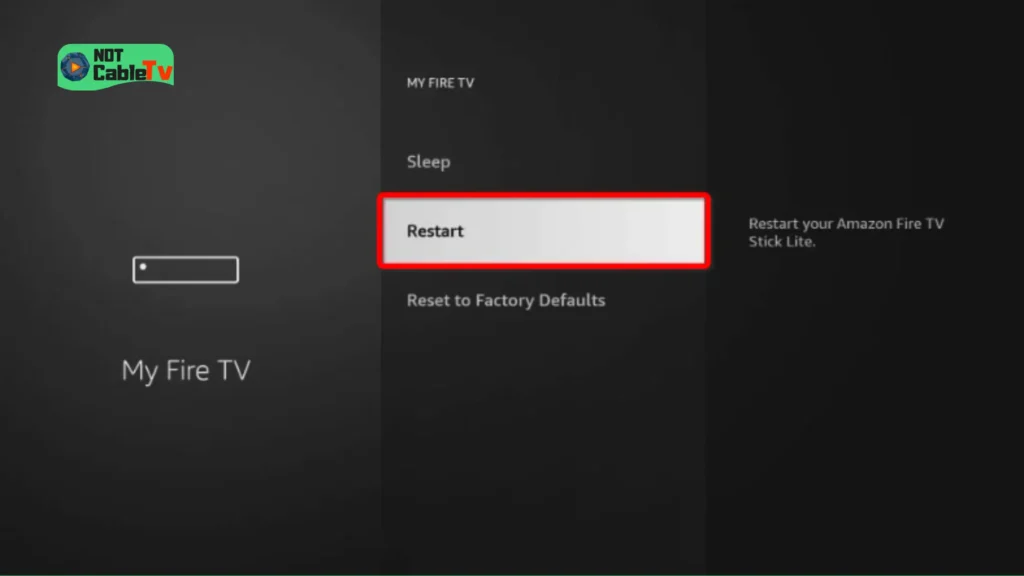
If you only unplugged it quickly before, do a full restart from settings to clear deeper system glitches.
Steps:
- Go to Settings
- Select My Fire TV
- Click Restart
- Wait until the device fully reloads
💡 This resets temporary network processes that may block internet access.
Restart Your Router (Full Refresh)
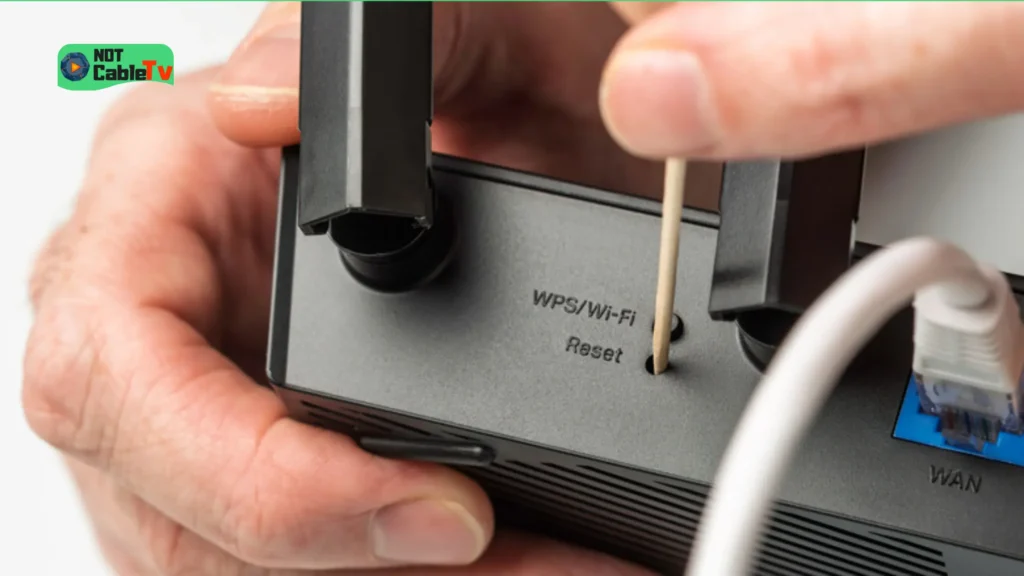
Even if you already restarted it, try a complete reset cycle:
Steps:
- Unplug your router and modem
- Wait at least 60–90 seconds
- Plug in the modem first → wait 1–2 minutes
- Then plug in the router
- Wait until all lights are stable
📌 This ensures your ISP connection is fully restored.
Check Your WiFi Signal Strength
A weak signal can cause your Firestick to connect but not actually load anything.
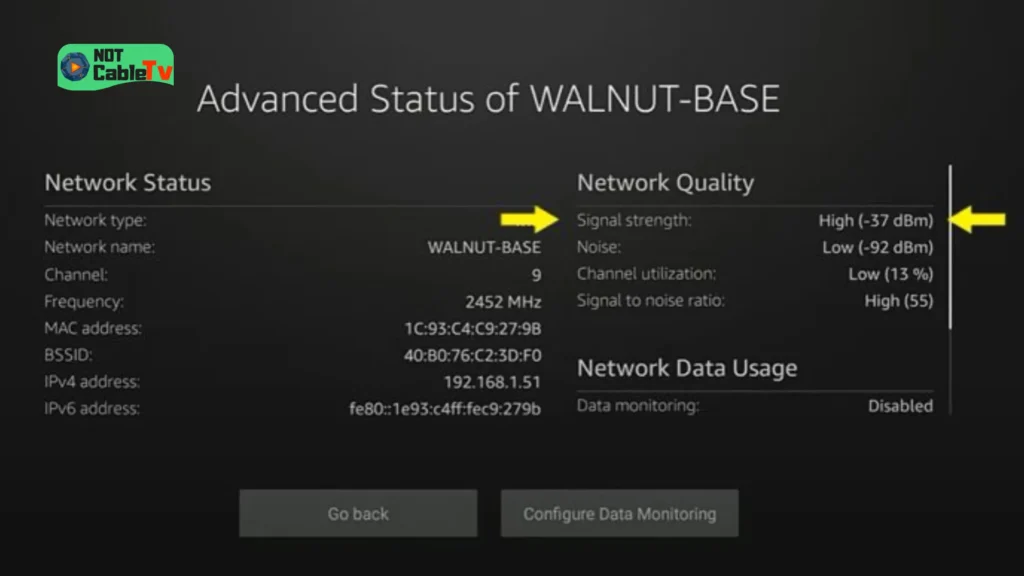
Check signal strength:
- Go to Settings > Network
- Select your WiFi network
- Look for signal quality (Good / Very Good / Poor)
Fix weak signal:
- Move your Firestick closer to the router
- Use an HDMI extender (comes with Firestick)
- Avoid walls or metal objects blocking the signal
Try a Different WiFi Network
This helps identify whether the problem is your Firestick or your internet.
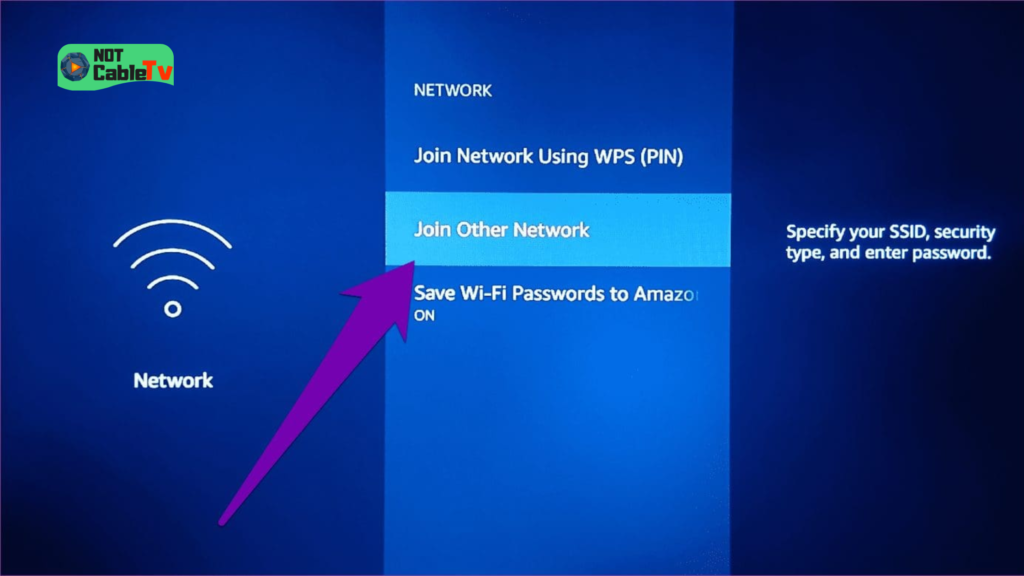
What to do:
- Connect to a mobile hotspot (from your phone)
- Or try another WiFi network
👉 If it works on another network:
- The issue is your router or ISP
👉 If it still doesn’t work:
- The issue is likely your Firestick settings
Quick Tip
If apps like Netflix or YouTube don’t load, but your Firestick shows connected:
👉 It’s usually a network configuration issue, not a hardware problem.
💡 Still no internet? The issue may be deeper in your network settings — continue below.
Check Your Network Connection
If your Firestick says connected to WiFi but still has no internet, it’s time to verify whether the problem is coming from your internet connection, router, or the Firestick itself.
Test Internet on Another Device
Before changing anything else, confirm your internet is actually working.
Do this:
- Open WiFi on your phone or laptop
- Connect to the same network as your Firestick
- Try loading a website or video
👉 If it doesn’t work:
- Your internet connection is down
- Contact your ISP or wait for service to restore
👉 If it works fine:
- The issue is likely with your Firestick or router settings
Check Signal Strength on Firestick
Even if you’re connected, a weak signal can prevent apps from loading.
Steps:
- Go to Settings > Network
- Select your connected WiFi
- Check the signal status
What it means:
- Very Good / Good → signal is fine
- Poor → likely the cause of the issue
Fix poor signal:
- Move the Firestick closer to your router
- Use the HDMI extender
- Avoid placing it behind the TV or near metal objects
Move Your Firestick or Router
Sometimes the issue is simply WiFi interference.
Common causes:
- Thick walls
- Other electronics (TVs, microwaves)
- Crowded WiFi channels
Quick fix:
- Move your router to a more open space
- Or bring the Firestick closer
Check for Internet Restrictions
Your router might be blocking the Firestick without you realizing it.
Possible causes:
- Parental controls
- MAC address filtering
- Device limits
👉 If other devices work but your Firestick doesn’t, check your router settings.
Quick Insight
If your Firestick:
- Connects instantly
- Shows “connected”
- But apps don’t load
👉 This usually means:
The connection exists — but data isn’t flowing properly
💡 If everything looks fine but the problem continues, the issue may be inside your Firestick’s network settings.
Watch Every Match Smoothly
Fix Firestick Network Settings
If your Firestick is connected to WiFi but still has no internet, the issue may be caused by incorrect or broken network settings inside the device.
These fixes go a bit deeper — but don’t worry, just follow the steps carefully.
Run Network Diagnostics
Firestick has a built-in tool to detect connection problems.
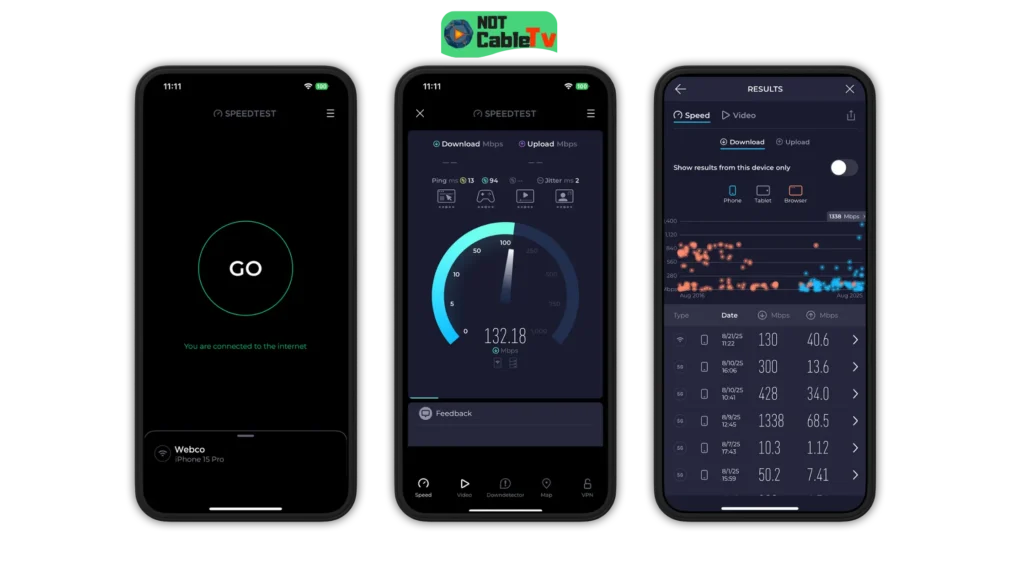
Steps:
- Go to Settings > Network
- Highlight your WiFi network
- Press the Play/Pause button on your remote
👉 This will show:
- Internet status
- Signal strength
- Connection errors
📌 If it shows “No Internet,” continue with the fixes below.
Change DNS to Google DNS
Sometimes your ISP’s DNS can block or slow down internet access.
Switching to Google DNS often fixes this instantly.
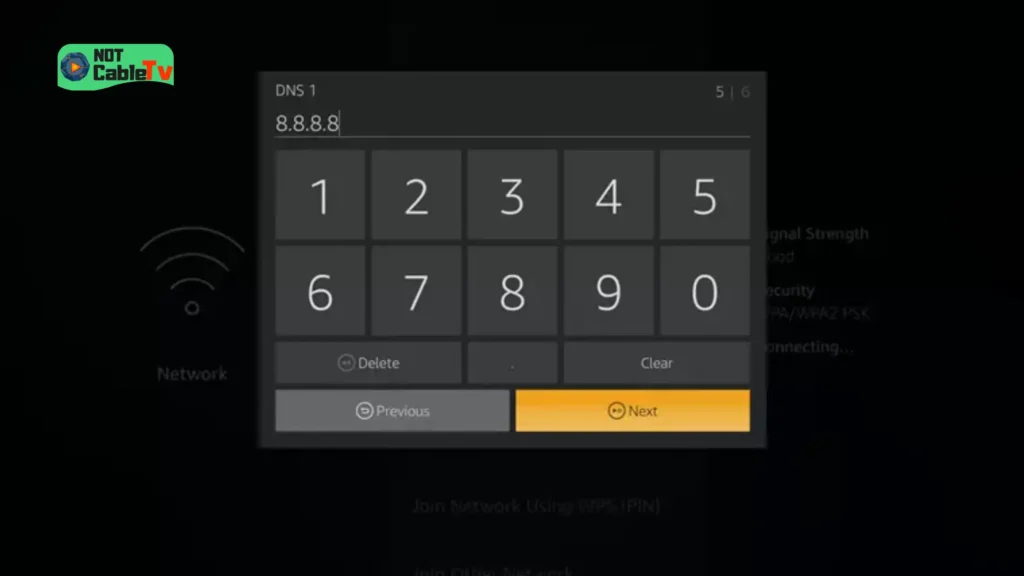
Steps:
- Go to Settings > Network
- Select your WiFi → click Forget Network
- Reconnect manually
- Choose Advanced Settings when prompted
Enter:
- IP Address: (leave default or same range)
- Gateway: usually your router (e.g. 192.168.1.1)
- DNS 1:
8.8.8.8 - DNS 2:
8.8.4.4
Set a Static IP Address
If your router assigns a faulty IP, your Firestick may connect but not access the internet.
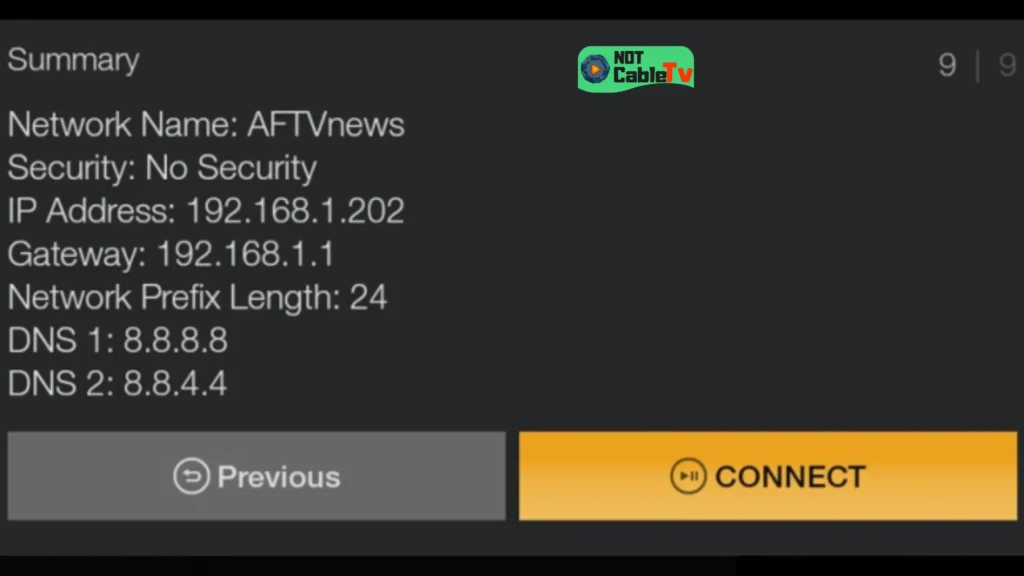
Fix:
- During WiFi setup, choose Advanced
- Assign:
- IP:
192.168.1.xxx(unused number like 50–200) - Gateway: your router IP
- DNS: Google DNS (above)
- IP:
📌 This stabilizes the connection and avoids IP conflicts.
Disable VPN (If You’re Using One)
A VPN can sometimes block internet access on Firestick.
Check this if:
- You use apps like IPTV, streaming apps, or VPN tools
Fix:
- Turn OFF your VPN
- Restart Firestick
- Test connection again
👉 If it works:
- Your VPN is causing the issue
- Try switching server or VPN provider
Quick Insight
If changing DNS or disabling VPN fixes the issue:
👉 The problem was not your WiFi —
👉 It was how your Firestick communicates with the internet
💡 Still not working? The issue may come from your router or ISP — let’s check that next.
Router & ISP Issues
If your Firestick is connected to WiFi but still has no internet, and all device fixes failed, the problem is likely coming from your router settings or your internet provider (ISP).
Check Router Bandwidth & Device Limits
Some routers limit how many devices can use the internet at the same time.
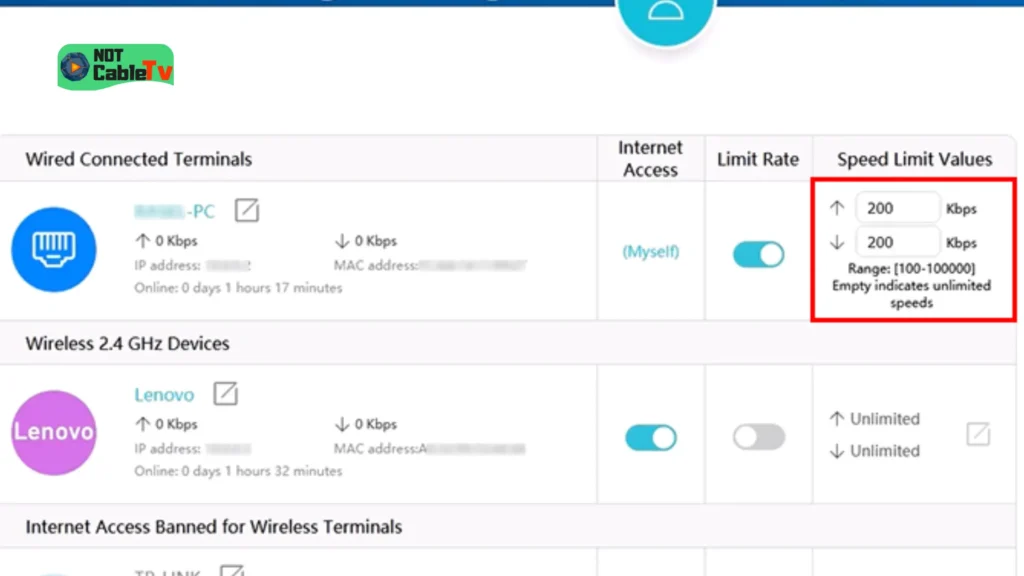
Symptoms:
- Firestick connects but apps don’t load
- Other devices are using most of the bandwidth
- Internet works on phone but not on Firestick
Fix:
- Disconnect unused devices from WiFi
- Restart your router
- If possible, enable QoS (Quality of Service) and prioritize your Firestick
Disable MAC Address Filtering
Your router may be blocking your Firestick without you realizing it.
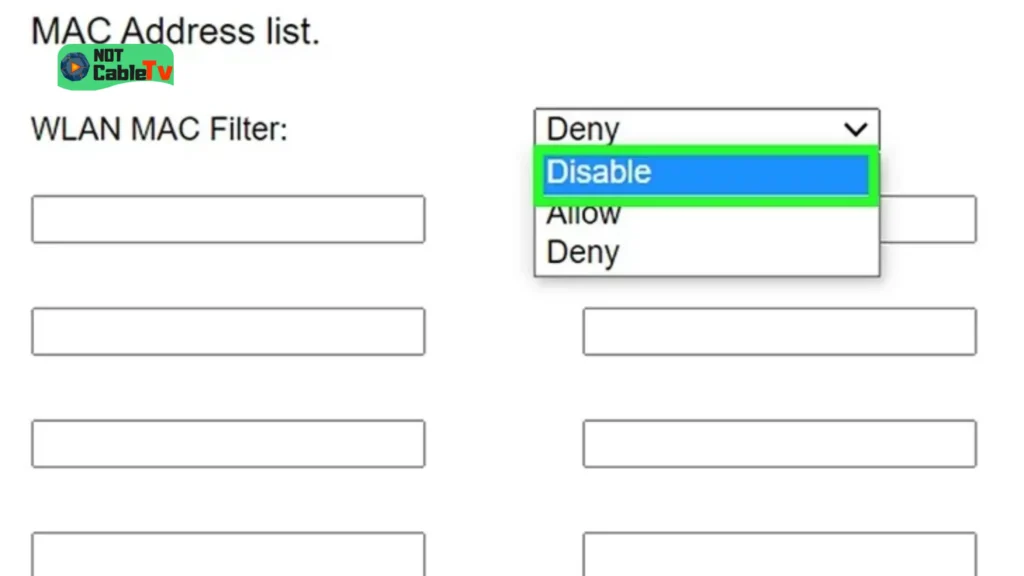
What is MAC filtering?
- A security feature that allows only approved devices
Fix:
- Log into your router (usually
192.168.1.1) - Find MAC Filtering / Access Control
- Disable it or add your Firestick as an allowed device
📌 This is a common cause when WiFi shows connected but internet doesn’t work.
Fix WiFi Interference & Channel Issues
WiFi congestion can prevent proper internet access even if connected.
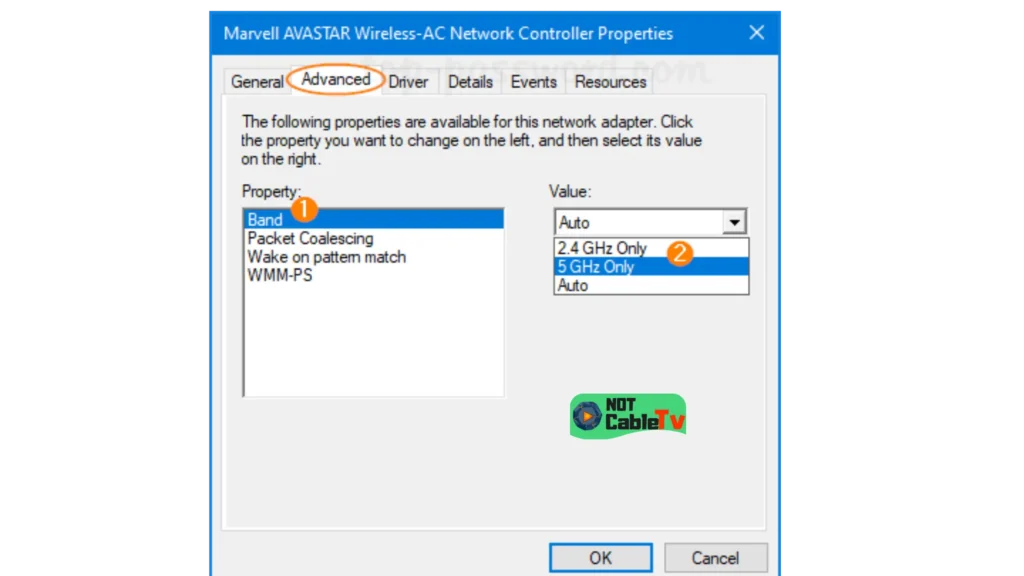
Fix:
- Log into your router
- Change WiFi channel (Auto → manual like channel 1, 6, or 11)
- Switch between 2.4GHz and 5GHz networks
👉 2.4GHz = better range
👉 5GHz = faster speed (shorter distance)
Check ISP Restrictions or Throttling
Some internet providers limit streaming traffic or certain apps.
Symptoms:
- Firestick shows connected
- Apps don’t load or buffer endlessly
- Works fine with mobile hotspot
Fix:
- Restart router (refresh IP)
- Try using a VPN (if ISP is blocking content)
- Contact your ISP
Use an Ethernet Adapter (Best Stability Fix)
WiFi issues can be completely avoided with a wired connection.
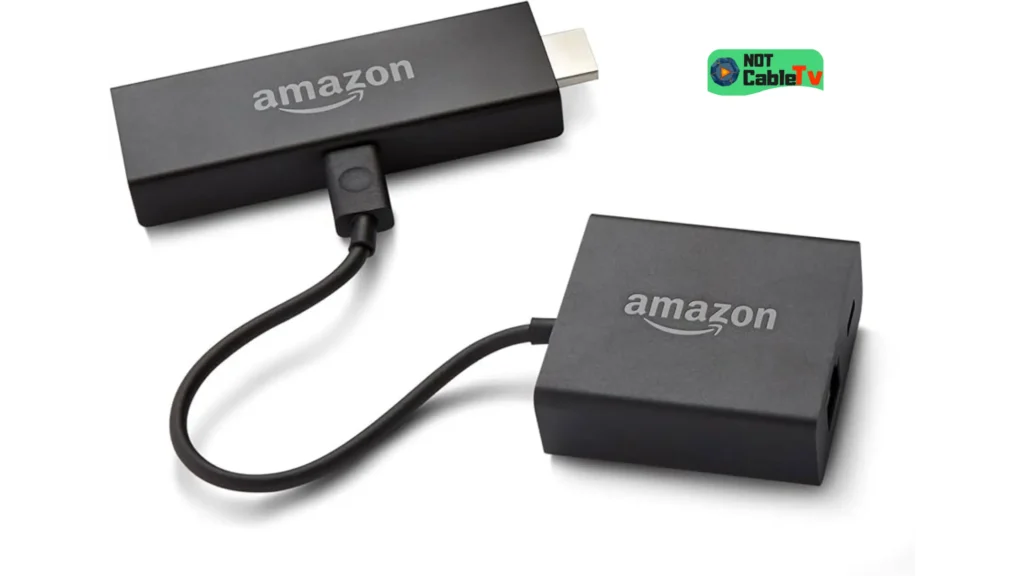
Solution:
- Use a Firestick Ethernet adapter
- Connect directly to your router
👉 This gives:
- Stable internet
- No interference
- Faster streaming
Quick Insight
If your Firestick works perfectly on:
- A mobile hotspot
- Another WiFi network
👉 Then your router or ISP is the real problem — not your Firestick
💡 If none of these fixes work, it’s time for deeper system-level solutions.
Advanced Fixes (Last Resort Solutions)
If your Firestick is still connected to WiFi but no internet, even after trying all previous steps, these advanced fixes can solve deeper system or software issues.
Update Firestick (Fire OS)
An outdated system can cause network bugs or compatibility issues.
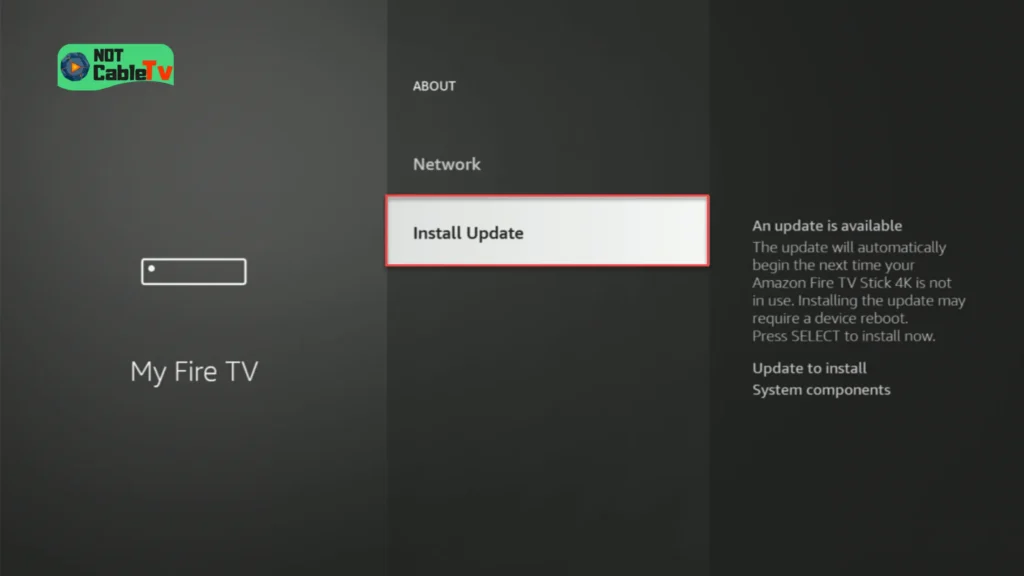
Steps:
- Go to Settings
- Select Device & Software (or My Fire TV on older versions)
- Click About
- Select Check for Updates
- Install any available update
👉 After updating, restart your Firestick and test again.
Reset Network by Reconnecting Fully
Sometimes your network profile becomes corrupted.
Fix:
- Go to Settings > Network
- Forget your WiFi network
- Restart your Firestick
- Reconnect manually (enter password again)
📌 This forces a clean network setup.
Turn Off VPN or Smart DNS Apps
If you use:
- VPN apps
- Smart DNS services
- Streaming tools
They may block internet access completely.
Fix:
- Disable the VPN
- Restart your Firestick
- Try connecting again
👉 If it works:
- Your VPN configuration is the issue
Watch Every Match Smoothly
Factory Reset Firestick (Final Fix)
If nothing else works, a full reset can remove hidden errors.
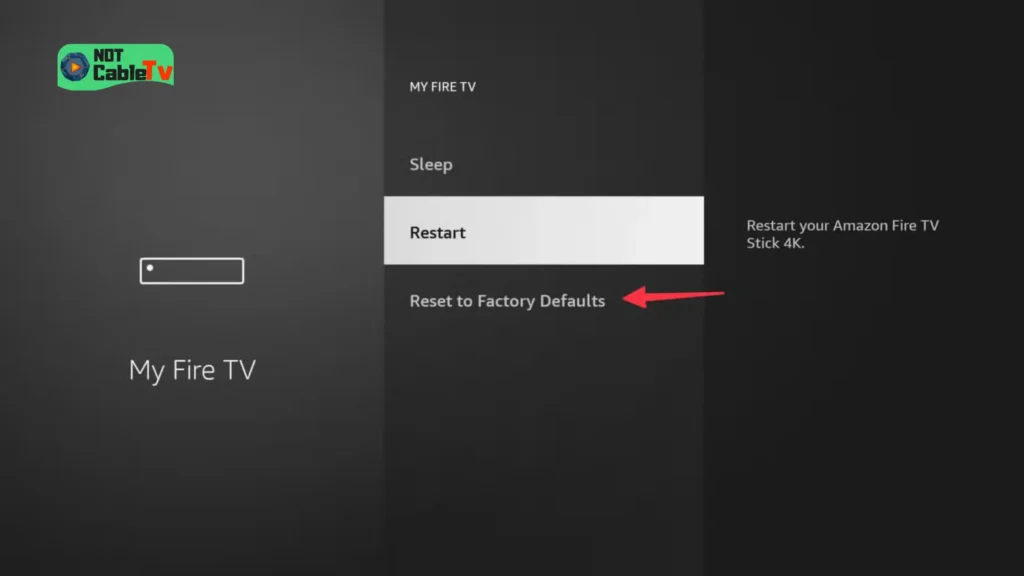
⚠️ This will erase:
- Apps
- Settings
- Accounts
Steps:
- Go to Settings
- Select My Fire TV
- Click Reset to Factory Defaults
- Confirm reset
After reset:
- Reconnect to WiFi
- Reinstall your apps
Quick Insight
If a factory reset fixes the issue:
👉 The problem was likely:
- A system bug
- A broken app
- Or a corrupted setting
💡 Still seeing “connected but no internet”? There’s one more important case — especially if you use streaming or IPTV apps.
IPTV Apps Showing “No Internet” (Important Fix)
If your Firestick says connected but no internet, but:
- YouTube works
- Netflix works
- Browser works
👉 Then your internet is actually fine.
The problem is likely coming from your IPTV or streaming app, not your WiFi.
Why IPTV Apps Show “No Internet” (Even When You’re Connected)
Many IPTV apps display a “No Internet Connection” error when the real issue is something else, like:
- Server downtime
- Expired subscription
- Blocked connection (ISP or VPN)
- Incorrect login details (Xtream Codes / M3U)
- App bugs or outdated versions
📌 This is very common — and often misunderstood.
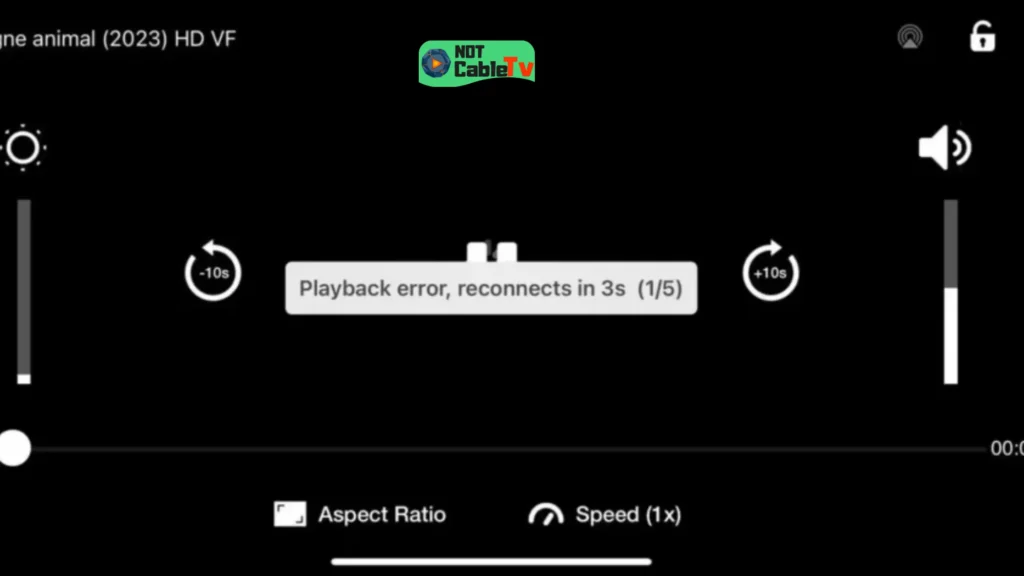
How to Confirm It’s NOT a WiFi Problem
Do this quick test:
- Open YouTube or Prime Video
- Try playing a video
👉 If it works perfectly:
- Your internet is working ✅
- Your Firestick is fine ✅
👉 The issue is inside the IPTV app
Fix IPTV “No Internet” Errors
Try these solutions:
✅ 1. Restart the IPTV App
- Force close the app
- Reopen it
✅ 2. Check Your IPTV Subscription
- Make sure it hasn’t expired
- Contact your provider if needed
Watch Every Match Smoothly
✅ 3. Update or Reinstall the App
- Delete the app
- Reinstall the latest version
✅ 4. Try Without VPN (or Change Server)
- Some IPTV services block certain VPN servers
- Switch location or disable VPN
✅ 5. Test Another IPTV App
- Example: try Smarters / TiviMate
👉 If another app works:
- Your original app is the problem
Quick Insight
👉 “No internet” inside IPTV apps usually means:
The app cannot reach its server — NOT that your WiFi is broken
💡 If you’re still having issues, it’s a good idea to test your connection or app setup properly.
👉 You can follow this guide:
FAQs — How To Fix Firestick Connected With Problems No Internet
❓ Why does my Firestick say connected but no internet?
This usually happens when your Firestick connects to your WiFi router, but the router itself has no internet access or there’s a configuration issue.
Common causes include:
- Router or modem problems
- Weak WiFi signal
- Incorrect DNS settings
- VPN interference
- ISP connection issues
👉 In most cases, restarting your Firestick and router fixes the problem.
❓ How do I reset WiFi on my Firestick?
To reset your WiFi connection:
- Go to Settings > Network
- Select your WiFi network
- Press the Menu button (☰)
- Click Forget Network
- Reconnect by entering your password
This clears any corrupted network settings.
❓ Why is my Firestick connected but apps won’t load?
If apps don’t load even when connected:
- Your internet may be unstable
- DNS settings may be incorrect
- A VPN may be blocking access
- Or the app itself may be having issues
👉 Try testing with YouTube or Netflix to confirm if the internet is working.
❓ Can a VPN cause Firestick internet issues?
Yes. A VPN can sometimes block internet access if:
- The server is overloaded
- The connection is unstable
- The VPN is misconfigured
👉 Try disabling the VPN or switching servers to fix the issue.
❓ Why does IPTV say “no internet” but everything else works?
This usually means your internet is working, but the IPTV app cannot connect to its server.
Possible reasons:
- IPTV server downtime
- Expired subscription
- Incorrect login details
- VPN or ISP blocking
👉 This is not a WiFi issue — it’s an app or service problem.
❓ Should I factory reset my Firestick?
You should only factory reset your Firestick if:
- All other fixes failed
- The issue keeps coming back
- You suspect a system bug
⚠️ This will erase all apps and settings, so use it as a last resort.
❓ Does weak WiFi cause “connected but no internet”?
Yes. A weak or unstable signal can cause your Firestick to connect but fail to load data.
👉 Moving closer to the router or using an Ethernet adapter can fix this.
Final Tip
If your Firestick shows “connected with problems” but no internet, don’t panic — this is a common issue and almost always fixable.
Start with the quick fixes, then follow the guide step by step until your connection is fully restored. In most cases, the problem comes from a simple network glitch or setting — not a broken device.
👉 Once fixed, your Firestick should connect instantly and stream without interruptions again.


[…] your Firestick won’t connect at all or shows a network error, our guide on fixing a Firestick that says “connected with problems / no internet” walks through every […]