
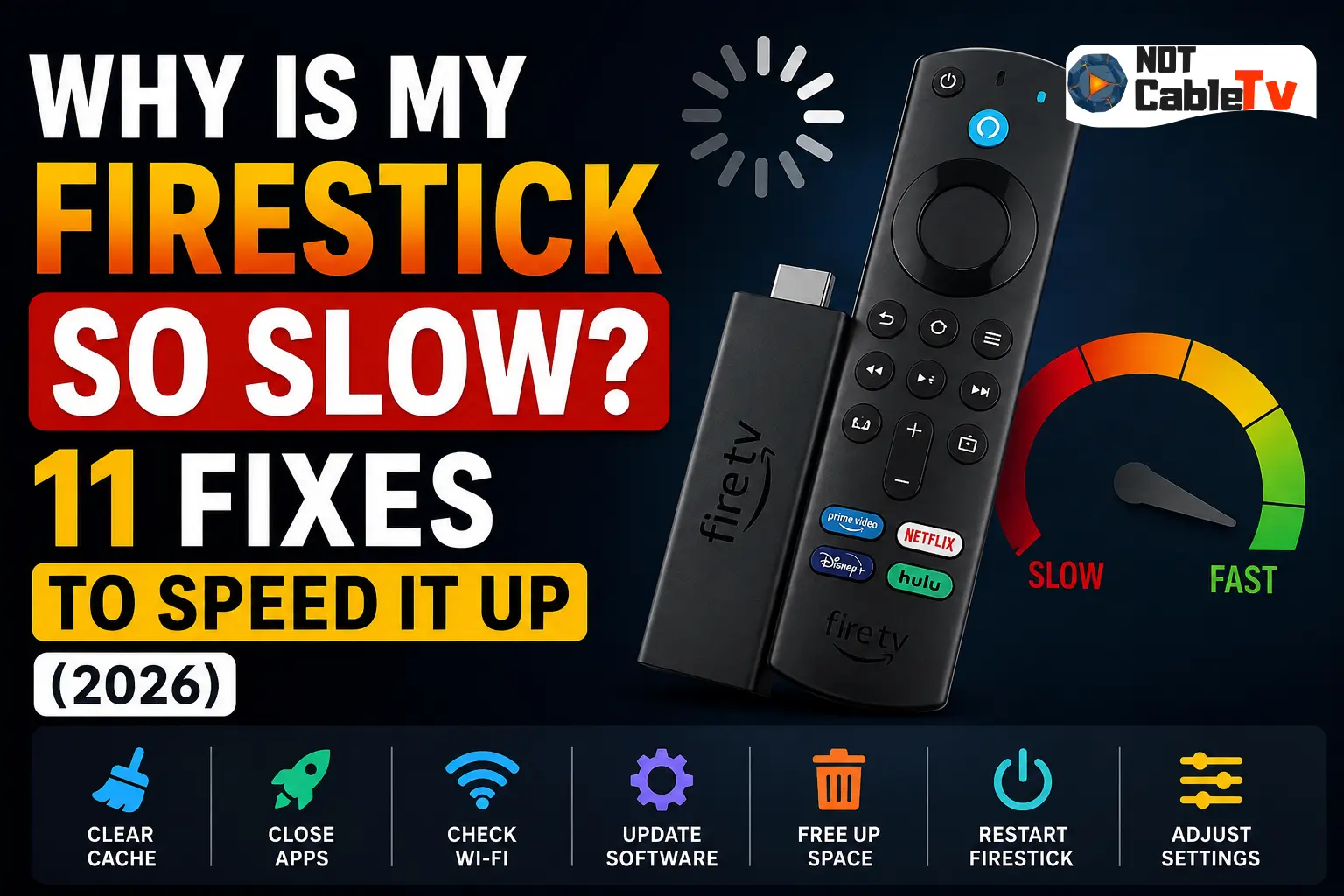
Is your Fire TV Stick crawling — menus lagging, apps taking forever to open, video stuttering? A slow Firestick is one of the most common streaming frustrations, and the good news is you can almost always fix it yourself in a few minutes without buying a new device. Most slowdowns come down to a full cache, too many background apps, low storage, or a weak internet connection — all of which are easy to clear up.
This guide walks you through every fix that works, ordered from the fastest 30-second reset to the deeper solutions, plus a quick way to match your exact symptom to the right fix. Let’s get your Firestick running smoothly again.

Watch Every Match Smoothly
Quick Fix: Match Your Symptom to the Right Solution
Not every “slow” Firestick has the same cause. Use this table to jump straight to what’s most likely wrong:
| Your symptom | Most likely cause | Best fix |
|---|---|---|
| Menus and navigation lag | Full cache / background apps | Clear cache, force-stop apps (Fixes 2–4) |
| Apps slow to open or crash | Low storage / outdated app | Uninstall unused apps, update (Fixes 3, 5) |
| Video buffers or drops quality | Slow or weak Wi-Fi | Check internet, use 5GHz/ethernet (Fix 8) |
| Slow only after a while, then freezes | Overheating | Improve ventilation (Fix 10) |
| Slowed down right after an update | Software glitch / old hardware | Restart, then factory reset (Fixes 1, 11) |
Why Is My Firestick So Slow?
Your Fire TV Stick is a tiny computer with limited storage, memory, and processing power. Over time, everyday use fills it up and bogs it down. The most common reasons a Firestick becomes slow are:
- A full app cache — temporary files pile up and clog memory.
- Too many background apps running and eating RAM.
- Low storage space from too many installed apps.
- A weak or slow internet connection causing buffering.
- Outdated Fire OS or app versions.
- Overheating from poor ventilation.
- An underpowered power source (using a TV USB port instead of the wall).
- Older hardware that’s simply reaching the end of its life.
Work through the fixes below in order — they’re arranged from easiest and most effective to last-resort.
First: Is It Your Firestick or Your Internet?
Before you start, a 20-second test saves time. Watch how it’s slow: if the Fire TV menus and home screen themselves lag when you scroll, the problem is on the device (cache, storage, memory) — focus on Fixes 1–7 and 9–11. If the menus are snappy but video buffers or drops to blurry quality, the problem is your connection — jump to Fix 8. If a single app is the only thing that’s slow, skip to the app-specific section below. Knowing which of the two it is means you fix the right thing the first time instead of guessing.
1. Restart Your Firestick
A simple restart clears out temporary glitches and frees up memory — it’s the single most effective first step. Go to Settings > My Fire TV > Restart, or press and hold the Select and Play/Pause buttons together for about 5 seconds until the device reboots. For a deeper reset, unplug the Firestick from power for 30–60 seconds, then plug it back in. Give it a minute to fully load before testing.
If the interface is so slow that even opening Settings is a struggle, the unplug method is your friend — it forces a full reboot without needing the menus. And if your remote is lagging or unresponsive on top of the slowdown, that’s a separate issue worth ruling out; see our guide on fixing a Firestick remote that’s not working.
2. Clear the App Cache
Cached files speed apps up — until they pile up and do the opposite. Clearing them is one of the biggest speed wins:
- Go to Settings > Applications > Manage Installed Applications.
- Select a heavily used app (streaming apps like Netflix, Prime Video, or your IPTV player build up the most).
- Choose Clear cache.
- Repeat for your other most-used apps.
This won’t log you out or delete anything important — it just clears temporary junk.
3. Uninstall Apps You Don’t Use
Every installed app takes up storage and may run background processes. A Firestick low on storage slows to a crawl. In Settings > Applications > Manage Installed Applications, select any apps you no longer use and choose Uninstall. Freeing up space alone can noticeably speed things up, especially on the base Fire TV Stick and Stick Lite, which have the least storage.
4. Force-Stop Background Apps
Apps you’ve closed often keep running in the background, quietly using memory. In Manage Installed Applications, open an app and select Force stop. Do this for apps you’re not actively using. Unlike a phone, the Firestick has no simple “recent apps” switcher, so force-stopping is the way to reclaim that memory.
5. Update Fire OS and Your Apps
Running outdated software is a common, overlooked cause of sluggishness. Check for a system update under Settings > My Fire TV > About > Check for Updates and install anything available. Then update your apps from the Amazon Appstore. Updates frequently include performance and stability improvements.
6. Turn Off Data Monitoring and App Usage Collection
Two background settings quietly use resources and offer most users no benefit. Turn both off:
- Settings > Preferences > Data Monitoring → toggle off.
- Settings > Preferences > Privacy Settings → turn off Collect App Usage Data and Device Usage Data.
This reduces background activity and has the bonus of improving your privacy.
7. Disable Automatic App Updates and Featured Content
Your Firestick can update apps and preload featured video on the home screen in the background, stealing bandwidth and resources. Turn off auto-updates under Settings > Applications > Appstore > Automatic Updates, and disable Featured Content autoplay video/audio under Settings > Preferences > Featured Content. You’ll get a snappier home screen and less background churn.
8. Check and Improve Your Internet Connection
If the slowdown is buffering or drops in video quality rather than laggy menus, your internet is the likely culprit. A few things to check:
- Test your speed: run a speed test app on the Firestick and compare it to what you’re paying for.
- Use the 5GHz Wi-Fi band instead of 2.4GHz when you’re near the router — it’s faster and less congested. Connect under Settings > Network.
- Move closer to the router or add a Wi-Fi extender/mesh node if the signal is weak.
- Go wired: for the most stable connection, an ethernet adapter for your Firestick eliminates Wi-Fi problems entirely.
Here’s roughly how much speed you need for smooth playback:
| Streaming quality | Recommended speed |
|---|---|
| SD (480p) | 3–5 Mbps |
| HD (1080p) | 10–15 Mbps |
| 4K Ultra HD | 25+ Mbps |
| Multiple devices at once | 50+ Mbps |
Remember these are per-stream figures — if other people in the house are streaming, gaming, or downloading at the same time, you need considerably more headroom to avoid buffering during peak evening hours.
If your Firestick won’t connect at all or shows a network error, our guide on fixing a Firestick that says “connected with problems / no internet” walks through every fix.
Is Just One App Slow? (IPTV, Netflix, and Others)
If everything runs fine except one app, the fix is targeted rather than device-wide. Clear that specific app’s cache (Fix 2), force-stop it (Fix 4), and make sure it’s updated (Fix 5) — a corrupted cache in a single heavy app is a frequent cause. If it’s still slow, uninstall and reinstall it for a clean copy. This is especially common with IPTV player apps, which cache large channel guides (EPG) that can bloat over time; if you’re troubleshooting one of those, our roundup of the best IPTV apps highlights the lightest, most stable options. A slow app usually is not a slow Firestick — treat them separately.
9. Use a Proper Power Source
Plugging your Firestick into your TV’s USB port instead of the included wall adapter is a surprisingly common cause of poor performance. TV USB ports often don’t supply enough power, which can throttle the device and cause lag or restarts. Always use the official power adapter plugged into a wall outlet for full performance.
10. Prevent Overheating
If your Firestick runs fine at first but slows down or freezes after a while, it may be overheating — especially when plugged into an HDMI port crammed behind a wall-mounted TV. Heat causes the processor to throttle. Use the included HDMI extender cable to move the stick out from behind the TV for better airflow, and make sure it isn’t boxed in by other hot electronics.
11. Factory Reset (Last Resort)
If nothing else works, a factory reset wipes everything and returns the Firestick to like-new speed. This erases all apps, settings, and logins, so use it only as a last resort. Go to Settings > My Fire TV > Reset to Factory Defaults and confirm. After it restarts, sign in and reinstall only the apps you actually use — a clean slate is often the fastest your Firestick will ever be.
Does Your Firestick Model Matter?
Yes — a lot. The fixes above help every model, but your hardware sets a ceiling on performance:
- Fire TV Stick Lite & basic Fire TV Stick (HD): the least RAM and storage, so they fill up and slow down fastest. Clearing cache and uninstalling apps matters most here.
- Fire TV Stick 4K: more power and storage; handles multitasking better.
- Fire TV Stick 4K Max: the fastest stick, with the most RAM, Wi-Fi 6, and the snappiest interface.
If you’ve tried every fix and an older Lite or first-generation stick is still sluggish, the hardware itself may simply be the bottleneck. Not sure what you’re working with? Our explainer on what a streaming device is covers how the models differ.
When to Fix vs. When to Replace
Firesticks typically last three to five years before age catches up with them. If your device is older than that, freezes constantly even after a factory reset, or can’t handle current apps, upgrading to a Fire TV Stick 4K or 4K Max is usually worth it — the newer chips and extra RAM make a dramatic difference. But if your stick is only a year or two old, one of the fixes above will almost certainly bring it back to life. Try them all before spending money.
Keep Your Firestick Fast: Maintenance Tips
- Restart your Firestick once a week to clear memory.
- Clear the cache of heavy apps every few weeks.
- Uninstall apps as soon as you stop using them.
- Keep Fire OS and apps updated.
- Use the HDMI extender and wall adapter for airflow and steady power.
Frequently Asked Questions
Why is my Firestick suddenly so slow?
A sudden slowdown is usually caused by a full cache, too many background apps, or a recent software update. Restart the device, clear the cache of your most-used apps, and force-stop background apps — that resolves most cases in minutes.
How do I clear the cache on my Firestick?
Go to Settings > Applications > Manage Installed Applications, select an app, and choose Clear Cache. Repeat for your most-used streaming apps. It won’t log you out or delete your data.
Does a slow Firestick mean I need a new one?
Not usually. Most slowdowns are fixed by clearing cache, freeing storage, and improving your internet. Only consider replacing it if the device is 3–5+ years old and stays slow even after a factory reset.
Should I use 5GHz or 2.4GHz Wi-Fi for my Firestick?
Use 5GHz when you’re close to the router for faster, less congested streaming. Use 2.4GHz only if the Firestick is far from the router, since it has better range but slower speeds.
Why does my Firestick get slow after running for a while?
That pattern points to overheating. Move the stick out from behind your TV using the HDMI extender for better airflow, and keep it away from other hot electronics.
Will a VPN slow down my Firestick?
A VPN can slightly reduce speed, but a good one has minimal impact and can even prevent ISP throttling of streams. If yours causes noticeable lag, try connecting to a closer server or switch to a faster, streaming-optimized provider — see our picks for the best VPN for streaming and IPTV.
Final Thoughts
A slow Firestick is almost always a fixable software or connection issue — not a dead device. Start by restarting, clearing your app cache, and freeing up storage; those three steps solve the majority of cases. From there, tidy up background activity, check your internet, ensure proper power and ventilation, and only factory-reset as a last resort. Match your specific symptom to the table at the top, work through the fixes, and your Fire TV Stick should feel fast again — no new purchase required.


[…] Clear cache. Relaunch the app afterward. If your whole device feels sluggish too, our guide on why your Firestick is slow has the full speed-up […]