
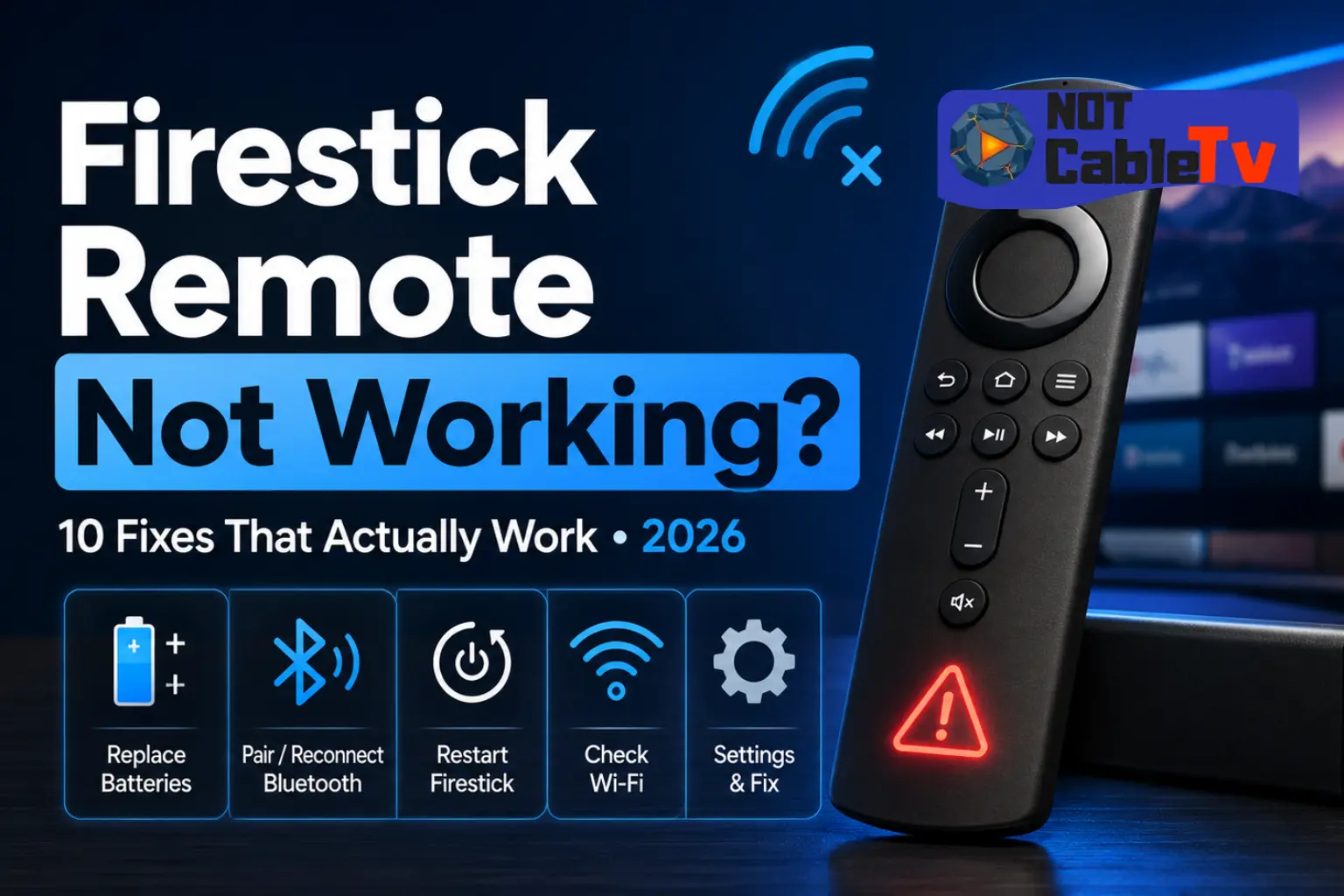
Few things are more frustrating than settling in for a movie night only to find your Firestick remote not working. You press the button, the screen sits frozen, and nothing happens. The good news: in the vast majority of cases this is a simple, fixable problem, and you rarely need to buy a replacement. Weak batteries, a dropped Bluetooth pairing, or a stick that needs a quick restart are behind most unresponsive remotes.
This guide walks you through every fix that actually works, ordered from the fastest 30-second solution to the deeper hardware resets. Whether your remote is completely dead, blinking an orange light, only partly responding, or refusing to pair after a battery change, you’ll find the exact steps below. Let’s get your Amazon Fire TV Stick back under control.

Watch Every Match Smoothly
Quick Fix: Try This First (Works 80% of the Time)
Before you dig into the detailed steps, run through this 60-second checklist. For most people, one of these three actions solves an unresponsive Firestick remote immediately:
- Swap in fresh batteries. Dying batteries are the number one cause. Use two brand-new AAA alkaline batteries, not old or rechargeable ones.
- Power-cycle your Firestick. Unplug the Fire TV Stick from power (the wall or the USB port), wait 60 seconds, then plug it back in.
- Re-pair the remote. Stand within 3 feet of the stick and press and hold the Home button for 10 seconds to force it to reconnect.
Still stuck? Keep reading — the rest of this guide covers every remaining cause and the model-specific resets for each Fire TV remote generation.
Why Is My Firestick Remote Not Working?
Your Fire TV remote connects to the stick over Bluetooth (not infrared like an old TV remote), which means it doesn’t need line-of-sight but it does rely on a stable wireless pairing and enough battery power. When that connection or power drops, the remote goes unresponsive. The most common reasons a Firestick remote stops working are:
- Drained or weak batteries — even batteries that still power a clock can be too weak for Bluetooth.
- A dropped Bluetooth pairing between the remote and the stick.
- A software glitch on the Fire TV Stick that a restart clears.
- Signal interference from other wireless devices or the stick being tucked behind a TV.
- Too many paired devices — Fire TV supports a limited number of Bluetooth accessories at once.
- Distance — being too far from the stick weakens the connection.
- Physical or water damage to the remote itself.
- An incompatible remote that was never designed for your Fire TV model.
The fixes below are ordered to knock out the likeliest causes first, so work through them from the top.
<< List of Best IPTV Service for Firestick 2026 >>
1. Replace the Batteries (Do This Even If They Seem Fine)
This sounds obvious, but weak batteries cause more “dead” Firestick remotes than any other single issue — and a battery can have just enough charge to look fine while being too weak for a reliable Bluetooth signal.
- Open the back cover and install two fresh AAA alkaline batteries.
- Make sure the + and – ends match the markings inside the compartment.
- Avoid rechargeable (NiMH) batteries — their lower 1.2V output can cause pairing and responsiveness problems on Fire TV remotes.
If you’ve been using rechargeables and the remote keeps dropping out, switching to standard alkaline batteries alone often fixes it. After swapping batteries, give the remote a few seconds to reconnect before testing.
2. Restart (Power-Cycle) Your Fire TV Stick
A quick restart clears temporary software glitches that can freeze the remote connection. You have two ways to do this:
Unplug method (best when the remote is fully dead): Pull the Fire TV Stick’s power cable out of the wall adapter or TV USB port, wait a full 60 seconds, then plug it back in. Waiting the full minute lets the device fully discharge and reset its Bluetooth radio.
Menu method (if the remote partly works): Go to Settings > My Fire TV > Restart, or press and hold the Select and Play/Pause buttons together for about 5 seconds to trigger a restart.
Wait for the Fire TV home screen to fully load before testing the remote again.
3. Re-Pair the Remote
If a fresh restart didn’t help, the remote may have lost its Bluetooth pairing with the stick. Re-pairing forces them to reconnect:
- Make sure the Fire TV Stick is powered on and the home screen (or a “remote not detected” prompt) is showing.
- Stand within 3 feet (1 meter) of the stick.
- Press and hold the Home button for 10 seconds, then release.
- Wait up to 30 seconds. You should see an on-screen confirmation that the remote is discovered and paired.
If nothing happens, remove the batteries, wait 10 seconds, reinsert them, and try the 10-second Home button hold again.
4. Move Closer and Clear Interference
Bluetooth range and signal quality matter. If your remote works intermittently or only sometimes registers presses, interference or distance is often the culprit:
- Stay within about 10 feet of the Fire TV Stick while troubleshooting.
- If the stick is plugged into an HDMI port hidden behind a wall-mounted TV, use the HDMI extender cable that came in the box to move it out from behind the panel — a metal TV chassis can block the signal.
- Move other wireless gadgets (Bluetooth speakers, cordless phones, microwaves, Wi-Fi routers) away from the stick, as they can interfere with the 2.4GHz signal.
5. Reset the Remote (Model-Specific Button Combinations)
If re-pairing failed, a hard reset of the remote itself often revives it. The exact button combination depends on which Fire TV remote you have. Here are the resets for each generation:
| Remote type | Reset steps |
|---|---|
| Most Alexa Voice Remotes (1st, 2nd & 3rd gen, Lite) | Press and hold the Left (directional) + Menu buttons together for 12 seconds. Release, wait 5 seconds, then remove and reinsert the batteries. |
| Alexa Voice Remote (widely-used alternative combo) | Press and hold Back + Left (directional) + Menu together for about 12–15 seconds if the two-button combo above doesn’t respond. |
| Basic Edition remote (no voice/volume buttons) | Hold the Home button and press Menu 3 times. Release Home, then press Menu 9 times. Remove batteries, unplug the stick for 60 seconds, then re-pair by holding Home for up to 40 seconds. |
After any reset: remove the batteries, unplug the Fire TV Stick from power for 60 seconds, plug it back in, reinsert the batteries, and then hold the Home button for 10 seconds to re-pair.
6. Decode the Blinking Light on Your Remote
Newer Fire TV remotes have a small LED near the top that signals what’s happening. Reading it tells you exactly where the problem is:
| LED behavior | What it means | What to do |
|---|---|---|
| Blinks rapidly, then goes solid briefly | Remote is in pairing/discovery mode. | Keep it within 3 feet and wait for the on-screen pairing confirmation. |
| Blinks 3 times when you press a button | The remote is not paired to the stick. | Re-pair by holding the Home button for 10 seconds. |
| Fast, continuous orange/amber blinking | Low battery, or the remote is stuck trying to connect. | Replace the batteries first, then re-pair. |
| No light at all when pressing buttons | Dead batteries or a hardware fault. | Fit fresh batteries; if still no light, the remote may be faulty. |
7. Check How Many Devices Are Paired
A Fire TV Stick can only keep a limited number of Bluetooth devices connected at once (typically around seven, including remotes, game controllers, and headphones). If you’ve paired several accessories, a new or reset remote may refuse to connect until you free up a slot.
If you can still navigate — using the Fire TV app (see below) or a second remote — go to Settings > Controllers & Bluetooth Devices > Other Bluetooth Devices and remove any accessories you’re no longer using, then try pairing your remote again.
8. Use the Fire TV App as a Backup Remote
Here’s the trick that saves the day when your physical remote is completely dead: your phone can become a full replacement remote. This is also the fastest way to keep watching while you wait for new batteries.
- On your phone, install the free Amazon Fire TV app (available for both iPhone and Android).
- Connect your phone to the same Wi-Fi network as your Fire TV Stick.
- Open the app, sign in with the same Amazon account used on the stick, and select your device from the list.
- Enter the 4-digit code shown on your TV to connect.
You’ll now have an on-screen navigation pad, keyboard, and even voice search. Beyond being a lifesaver in an emergency, the app makes it far easier to type logins for your streaming and IPTV apps than pecking letters out one at a time on a physical remote.
9. Make Sure Your Remote Is Compatible
If you bought a replacement or third-party remote, it may simply not be compatible with your Fire TV model. Older 1st-generation remotes and certain budget third-party remotes won’t pair with newer sticks, and vice versa. Check that the remote is listed as compatible with your specific device (for example, Fire TV Stick 4K, 4K Max, Lite, or Cube) before assuming it’s broken. Genuine Amazon replacement remotes list supported models on the packaging and product page.
10. Rule Out Physical or Water Damage
If none of the above works, inspect the remote for damage. A remote that was dropped hard or exposed to liquid can fail even when the batteries and pairing are fine. Look for cracked casing, sticky or stuck buttons, or corrosion on the battery contacts (clean any greenish residue gently with a cotton swab and a little isopropyl alcohol). If the remote was submerged or has visible internal damage, a replacement is usually the only fix.
Firestick Remote Not Working After Changing Batteries?
If you just put in fresh batteries and the remote still won’t respond, the pairing — not the power — is almost always the problem. Do this in order:
- Confirm the new batteries are seated correctly (+/– orientation) and are alkaline, not rechargeable.
- Unplug the Fire TV Stick from power for 60 seconds while the batteries are in the remote.
- Plug the stick back in and wait for the home screen.
- Hold the Home button for 10 seconds within 3 feet to re-pair.
- If it still fails, run the model-specific reset from Section 5, then re-pair again.
Firestick Remote Not Working With a Samsung or LG TV?
If your Firestick remote controls navigation but the volume and power buttons don’t affect your TV, that’s a separate feature called HDMI-CEC, not a broken remote. The Alexa Voice Remote’s TV controls work through CEC, which must be enabled on your television. On Samsung TVs this setting is called Anynet+ (HDMI-CEC), and on LG TVs it’s called SIMPLINK. Turn that option on in your TV’s settings, then re-run Settings > Equipment Control on the Fire TV to set up the TV controls. If navigation itself doesn’t work, the problem is the remote pairing — use the fixes above.
Voice (Alexa) Button Not Working on Your Remote?
Sometimes the navigation buttons work fine but the Alexa voice button does nothing when you press and hold it. This is a distinct problem from a fully dead remote, so it needs its own checks:
- Confirm you have a voice remote. The Basic Edition remote has no microphone, so there’s no voice button to fix.
- Check your internet connection. Voice search needs the Fire TV Stick online — if Wi-Fi is down, the mic won’t respond. Test by opening any streaming app.
- Hold, don’t tap. Press and hold the microphone button while speaking, then release when you finish.
- Re-pair the remote (hold Home for 10 seconds). A weak Bluetooth link can carry button presses but drop the voice channel.
- Replace the batteries. The power-hungry microphone is often the first function to fail as batteries weaken, even while other buttons still work.
If voice still fails after fresh batteries and a re-pair, the microphone hardware may be faulty and the remote likely needs replacing.
When to Replace Your Firestick Remote
Consider buying a new remote only after you’ve tried fresh batteries, a power-cycle, re-pairing, and a hard reset. If the remote shows no LED light with known-good batteries, has water or impact damage, or fails to pair on multiple Fire TV devices, it’s likely faulty. You can buy a genuine Amazon Fire TV Alexa Voice Remote directly from Amazon, and it will pair with your existing stick — you don’t need to replace the Fire TV Stick itself. In the meantime, the Fire TV phone app (Section 8) keeps you streaming.
How to Prevent Remote Problems in the Future
- Keep a spare set of AAA alkaline batteries on hand and replace them at the first sign of lag.
- Use the included HDMI extender so the stick isn’t buried behind a metal TV.
- Don’t pair more Bluetooth accessories than you actually use.
- Install the Fire TV app on your phone now, so you’re covered the moment the physical remote dies.
Frequently Asked Questions
Why is my Firestick remote not working all of a sudden?
The most common causes are weak batteries or a dropped Bluetooth pairing. Install fresh AAA alkaline batteries, then hold the Home button for 10 seconds to re-pair. A 60-second power-cycle of the stick fixes most remaining cases.
How do I reset my Firestick remote?
For most Alexa Voice Remotes, hold the Left directional + Menu buttons together for 12 seconds, then remove and reinsert the batteries. Unplug the stick for 60 seconds, plug it back in, and hold the Home button for 10 seconds to re-pair.
How do I re-pair my Fire TV remote?
Stand within 3 feet of the Fire TV Stick and press and hold the Home button for 10 seconds. Wait up to 30 seconds for the on-screen pairing confirmation.
Can I use my Firestick without the remote?
Yes. Install the free Amazon Fire TV app on your phone, connect it to the same Wi-Fi network and Amazon account as your stick, and it works as a full replacement remote with navigation, a keyboard, and voice search.
Why is my Firestick remote blinking orange?
A fast orange or amber blink usually means low battery or that the remote is stuck trying to connect. Replace the batteries first, then re-pair by holding the Home button for 10 seconds.
My Firestick remote works but the volume buttons don’t. Why?
Volume and power control use HDMI-CEC, which must be enabled on your TV — Anynet+ on Samsung, SIMPLINK on LG. Turn it on, then set up TV controls under Settings > Equipment Control on the Fire TV.
Do I need to buy a new Fire TV Stick if my remote is broken?
No. You can buy a standalone Amazon Fire TV Alexa Voice Remote and pair it with your existing stick. There’s no need to replace the whole device.
Final Thoughts
A Firestick remote not working is almost always a battery, pairing, or software hiccup — not a dead device. Start with fresh alkaline batteries, power-cycle the stick, and hold the Home button for 10 seconds to re-pair; those three steps clear the large majority of cases. If they don’t, work through the model-specific reset, decode the blinking light, and lean on the Fire TV phone app to keep watching. Only after all of that should you consider a replacement remote — and even then, your Fire TV Stick and all your apps stay exactly as you left them.

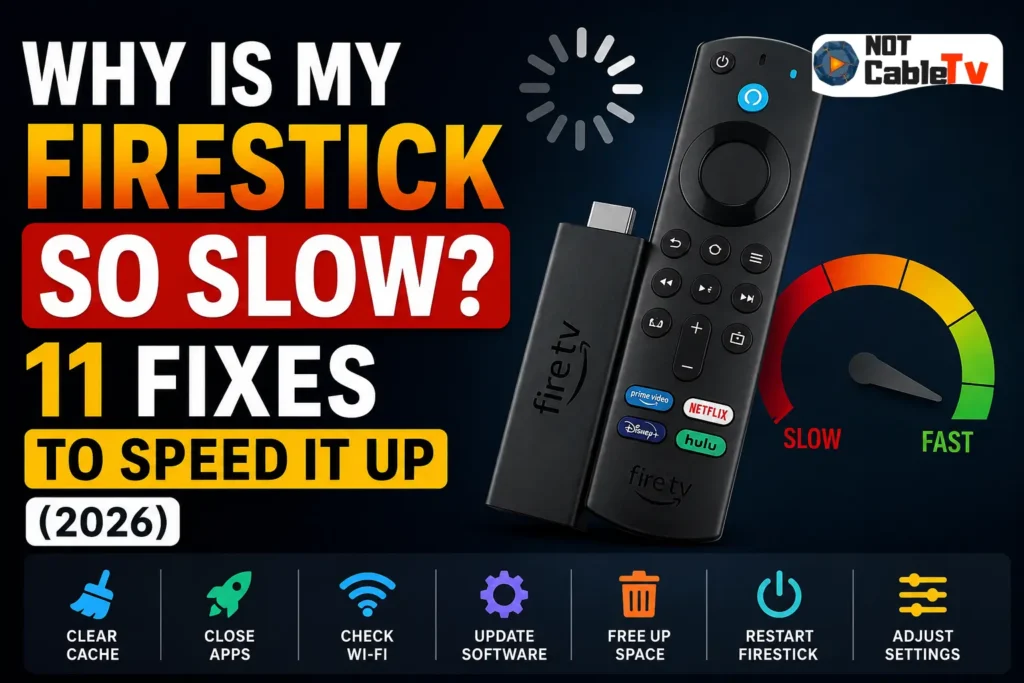

[…] If the interface is so slow that even opening Settings is a struggle, the unplug method is your friend — it forces a full reboot without needing the menus. And if your remote is lagging or unresponsive on top of the slowdown, that’s a separate issue worth ruling out; see our guide on fixing a Firestick remote that’s not working. […]